

.png)
DataBrain provides flexible filtering at the dashboard, section, and metric level so you can control exactly which data each visual sees and how conditions combine. This post shows how to use filter scope, AND/OR logic, dependent (cascading) filters, and variable filters to build conditional, context-aware analytics without changing your underlying data.
What you’ll need: A DataBrain workspace with at least one dashboard and metrics (or the ability to create them), and a dataset that has dimensions you want to filter on (e.g. region, date, category). No changes to your database are required.
Why filter scope and logic matter
In analytics, a “filter” is effectively the WHERE (and sometimes HAVING) part of the query. Where that filter is applied—and how multiple conditions are combined—determines what users see.
- Scope: Dashboard-wide filters affect every metric that uses them; metric-level filters affect only that metric; section filters affect only metrics in that section.
- Logic: Multi-value filters are often OR by default (e.g. “Region = West OR East”). Many use cases need AND (e.g. “show only entities that have both Category A and Category B”).
- Context: Dependent filters (e.g. State depending on Country) keep options relevant and reduce noise.
DataBrain supports all of this. Below we walk through how to use it.
Example: Without the right scope, a single “Region” filter at the dashboard level would limit every chart to that region—including a support-tickets chart that you actually want to see by “Team” and “Priority” instead. Once you add section filters and attach “Region” only to the sales section, the support section can use its own filters and stay independent. Getting scope right is what lets one dashboard serve multiple audiences.
1. Filter scope: dashboard, section, and metric
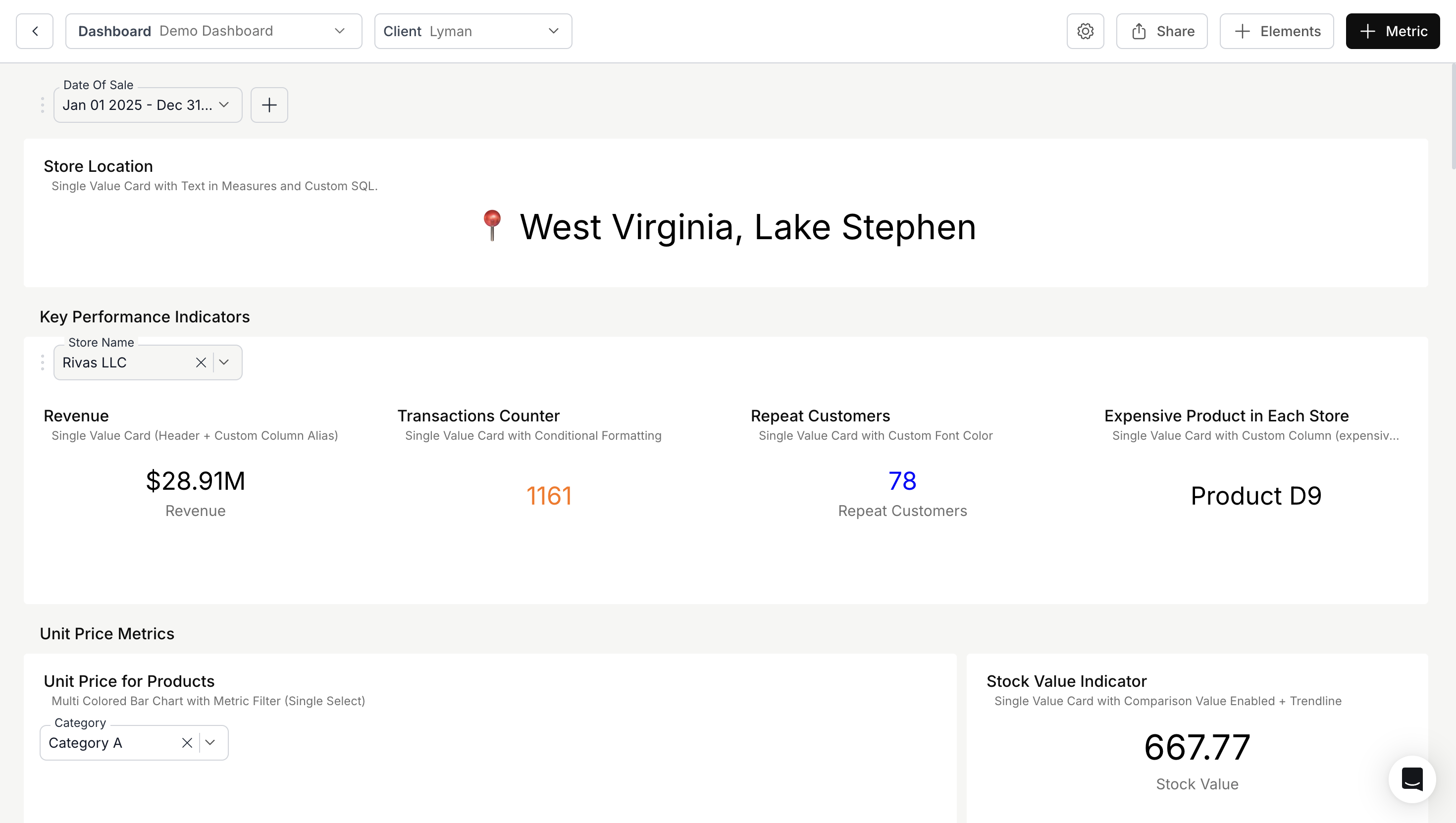
Dashboard filters (global)
Dashboard filters apply to the whole dashboard. You add them via the "+" under the dashboard name and configure:
- Option type: Auto (from a column), Range, Date, Manual, or Custom (SQL-driven options).
- Filter variant: Single select, multi-select, or search.
- Depend on: Another filter (e.g. State depends on Country) so options update based on the parent selection.
- Scope to client: In multi-tenant setups, options can be limited to the current client’s data.
- Restrict to metrics: You can limit which metrics a dashboard filter applies to (configured when editing that dashboard filter). So one dashboard can have a “Region” filter that only some cards use.
When to use: Date range, region, segment, or any dimension you want to control the whole view with one place.
Restrict to metrics: A subtle but powerful option—when you add a dashboard filter, you can configure it to apply only to specific metric cards. So you might have a "Campaign" filter that only affects your conversion funnel and acquisition charts, while your support and billing metrics ignore it entirely. This lets you share some context without forcing every card to respond to every filter.
Section filters (merged metrics)
When you group metric cards into sections (Merge Metrics / layout), you can attach dashboard filters to a section. Those filters then apply only to metrics in that section.
- Use case: One dashboard with “Sales” (filters: Region, Product) and “Support” (filters: Team, Priority). Each section has its own context without separate dashboards.
- How: In Dashboard Settings → Customize Layout, use Merge Metrics and add the dashboard filters you want for that section, then save and publish.
Metric-level filters
Metric filters are defined on the metric (create/edit metric → "+" under grouping/sorting/funneling). They apply only to that metric.
- Use case: A global “Date” filter plus a metric-specific “Campaign” filter so only that card is filtered by campaign.
- Same options as dashboard filters: Variant, default value, scope to client, label column, Depend on (metric or dashboard filters), and how the filter is applied (direct vs variable/custom SQL).
Summary: Use dashboard filters for shared context, section filters for per-section context, and metric filters when only one card needs that condition.
2. AND vs OR: combining filter conditions
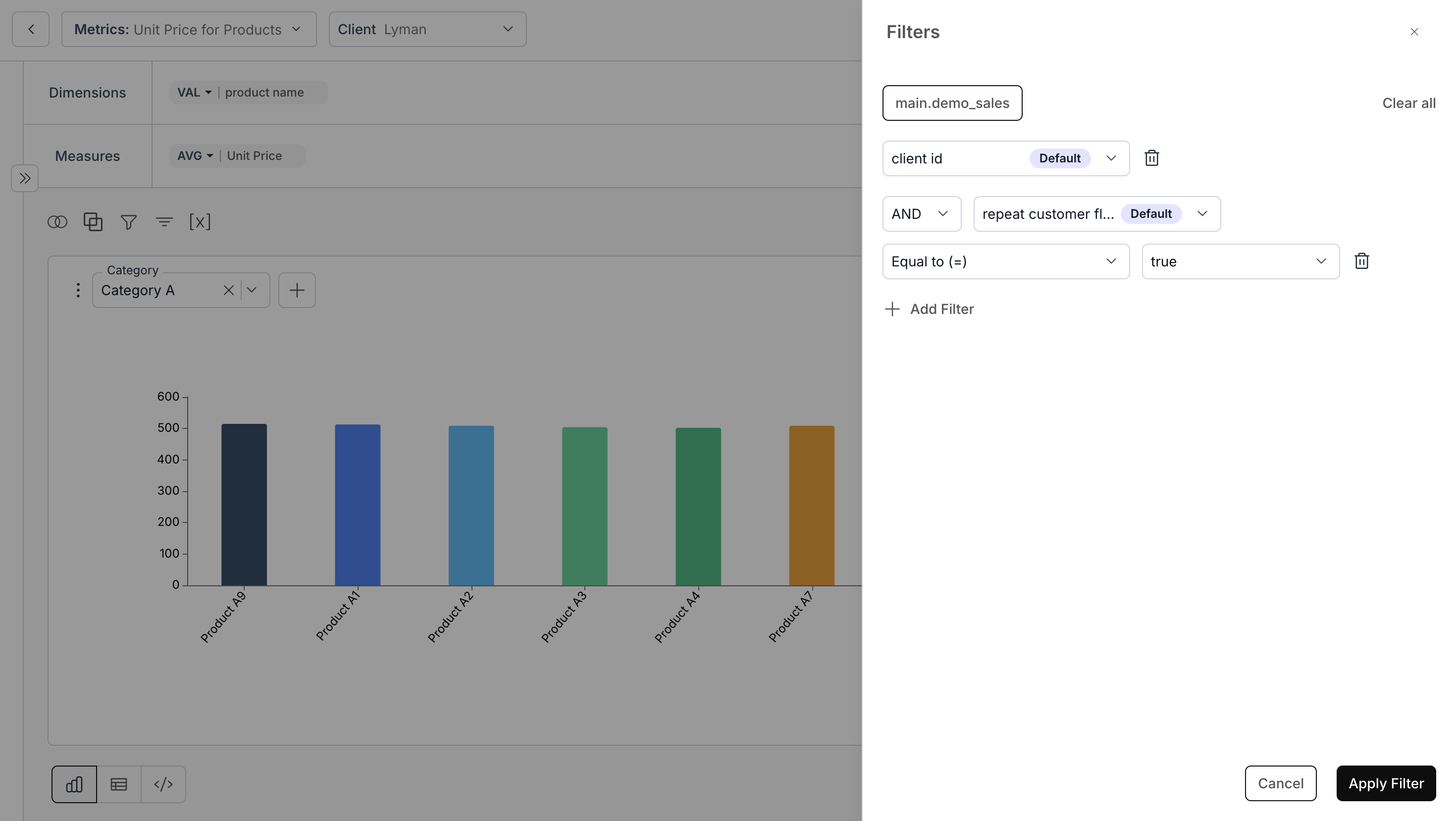
By default, when users select multiple values in a single filter (e.g. “Sport = Basketball, Archery”), DataBrain typically behaves like OR: show rows that match any of the selected values. That’s correct for “show me Basketball or Archery.” But sometimes you need AND: “show me only countries (or entities) that have both Basketball and Archery.”
Using relation operator between filters
When you have multiple filters (e.g. two different filter controls), you can control how they combine:
- In the metric’s filter configuration, each condition can have a relation operator: AND or OR.
- So you can express: (Filter1 = A) AND (Filter2 = B) or (Filter1 = A) OR (Filter2 = B) between conditions.
This is how you keep explicit AND/OR logic between different dimensions or filters.
Getting AND behavior for multiple values in one filter
If you need “must match all selected values” for a single multi-select filter (e.g. “only entities that have both Sport A and Sport B”), the default multi-select is OR. To get AND-style behavior you typically:
- Use a custom SQL metric and write a WHERE (or subquery) that requires the entity to appear for each selected value (e.g. with IN and COUNT DISTINCT), or
- Use a complex filter (custom WHERE clause) that encodes the AND logic.
Why this distinction matters: OR is ideal for "show me data for Region A or B"—you're expanding the result set. AND across values is for "show me only entities that satisfy all of these"—you're narrowing. Mixing them up leads to confusion: users expect "Region = West, East" to show combined West + East data, but "Product = A, B" as AND would show only customers who bought both products, which is a very different question.
3. Dependent (cascading) filters
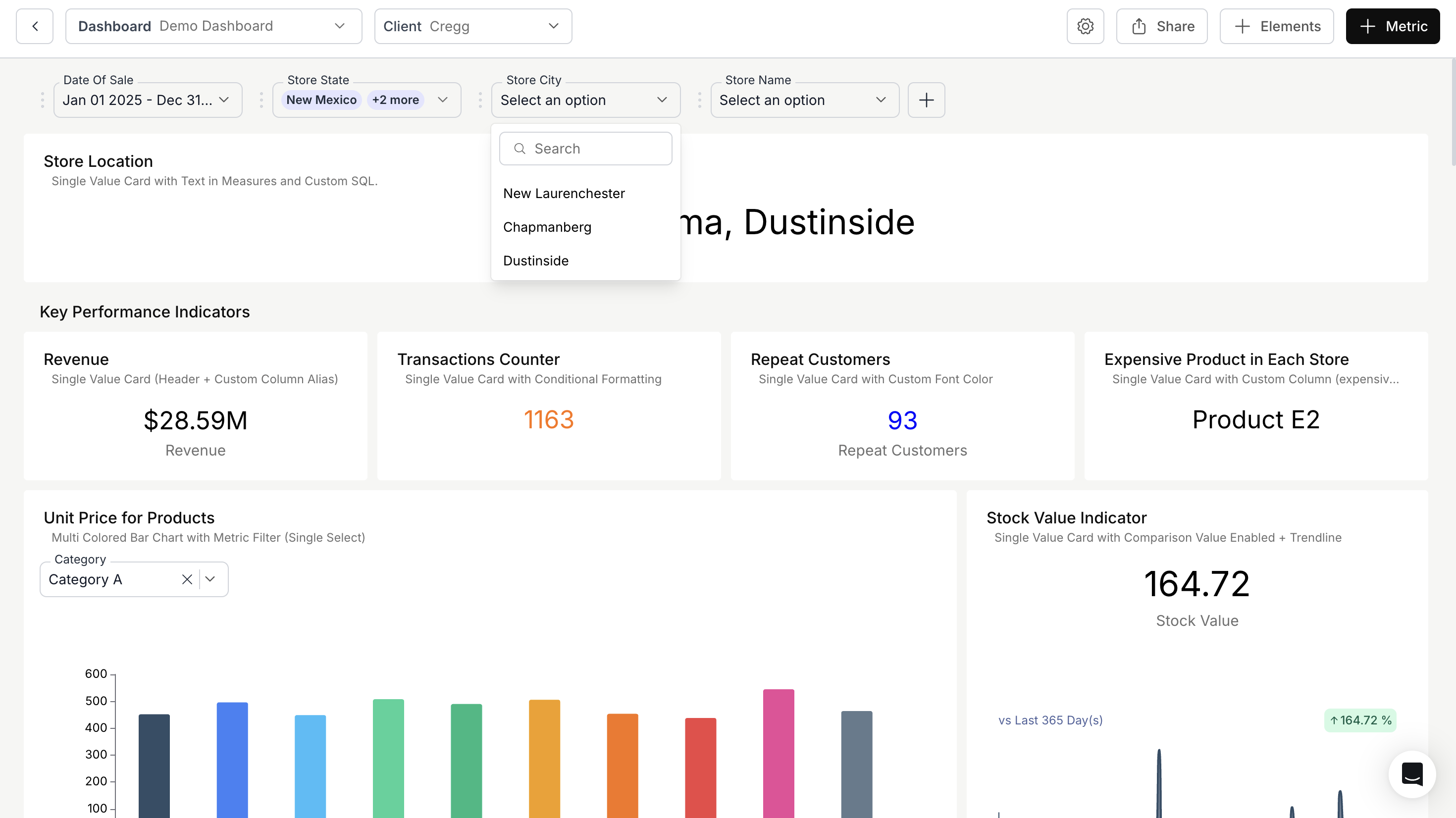
Depend on lets one filter’s options depend on another (e.g. State depends on Country). When the user picks “USA,” the State dropdown only shows states for the USA.
- Where: In the dashboard or metric filter setup, use Depend on (or Depend On) and choose the parent filter and the column to filter options by.
- Supported: Parent filters are typically string/default type; the dependent filter’s options are then driven by the parent’s value (or by custom SQL that uses that value).
- Backend: DataBrain resolves dependent filters in order: parent values are applied when fetching options for the dependent filter (including when options come from Custom SQL), so cascading stays consistent.
Use case: Country → State → City, or Category → Subcategory, so users only see valid combinations and avoid empty or irrelevant results.
Chained dependents: You can chain multiple levels—e.g. Region → Country → City. Each child filter's options are driven by its immediate parent, so selecting "EMEA" narrows Country, and selecting "France" narrows City. DataBrain resolves the chain in order, so the UI stays consistent even with deep hierarchies. This is especially useful for large dimension tables where unfiltered dropdowns would contain hundreds of irrelevant options.
4. Variable filters and custom SQL
When a filter is applied as Variable for Custom SQL, its selected value is exposed as a variable (e.g. {{value}} or {{global_value}}) that you can use only in the WHERE clause of a metric’s custom SQL.
- Direct apply: The filter is translated into a WHERE condition for you.
- Variable apply: You write the condition yourself in SQL, e.g. WHERE "country" = {{value}}. The engine replaces the variable with the selected value (properly quoted/escaped).
- Rules: Variables are allowed only in WHERE (and in the filter’s apply logic). They must not appear in SELECT, FROM, or GROUP BY, or you’ll get a clear error.
This is useful when:
- You need a non-standard condition (e.g. expression on the column, or a subquery).
- You want one metric to use the same dashboard filter in a different way than other metrics.
Tips and pitfalls: Keep variable names consistent between the filter config and your SQL (e.g. if the filter exposes {{value}}, use that exact token in the WHERE clause). If you see an error that filter or client variables were detected outside the WHERE clause, search your custom SQL for the variable name and move any occurrence out of SELECT, FROM, or GROUP BY. Parent filters in a Depend on chain are evaluated first—so ensure the parent filter has a default or that users select it before the dependent filter matters.
Learn more about Databrain's custom sql
Example—date range as variable: Suppose you need a metric that filters by a custom date expression (e.g. "last N days" where N comes from a filter, or a fiscal quarter). Apply the date filter as Variable for Custom SQL and use it in the WHERE: WHERE "created_at" >= {{start_date}} AND "created_at" < {{end_date}}. The filter's selected range is injected as the variable values, letting you handle non-standard date logic that direct apply might not support.
Read more
5. Quick reference: filter application options
Summary
- Scope: Use dashboard filters for global context, section filters for per-section context, and metric filters for card-specific conditions. Use Restrict to metrics when a dashboard filter should only affect certain cards.
- AND/OR: Use the relation operator (AND/OR) between different filter conditions. For AND across multiple values in one multi-select, use custom SQL or complex filter (see the AND multi-select post).
- Cascading: Use Depend on so child filter options (e.g. State) depend on parent selection (e.g. Country).
- Variable filters: Use Variable for Custom SQL when you need the selected value inside the metric’s WHERE clause as {{value}} or {{global_value}}.
These patterns give you conditional, context-aware analytics without duplicating data or building separate dashboards for every scenario. For more on embedding analytics with advanced filtering in data lakehouses or multi-tenant setups, see Embedded Analytics for Data Lakehouses.
Next steps:
- AND-style multi-select filters — recipe for “show only entities that have all selected values.”
- Context-aware dashboards — section filters, saved view presets, and cross-dashboard drill-down.
- Step-by-step setup: Dashboard filter guide (includes Depend on for cascading), Metric filter guide, and Variable apply in the DataBrain docs.


